How I Turn Voice Notes into Notion Summaries via ChatGPT
At a glance
- In shortHow to build an automated pipeline that transcribes voice notes and saves structured summaries into Notion.
- Best forCreators and solo business owners processing voice notes
- Tools coveredChatGPT, OpenAI Whisper, Notion
- PricingFreemium
- Skill levelIntermediate
- Key pointsAudio flows through capture, transcription, structuring, and storage stages. · OpenAI Whisper transcribes raw speech accurately despite background noise. · A structured ChatGPT prompt converts raw text into actionable Notion entries.
- Heads-upWhisper API has a 25MB file limit, so long recordings fail without compression.
The Problem with Voice Notes
Last winter, I was walking through Gangnam in sub-zero weather, holding my phone to my mouth to record a ten-minute brain dump for a video outline. By the time I got back to my desk, I had a rambling m4a audio file full of background street noise, repeated thoughts, and long pauses. It sat in my downloads folder for three weeks because the friction of re-listening and typing out notes manually was simply too high.
Speaking into a phone is roughly three times faster than typing on a keyboard. For creators and solo business owners running multiple projects, recording audio while walking, commuting, or cooking is the easiest way to capture raw ideas. However, audio files stored in folders are black holes. You cannot search them quickly, you cannot skimmable-read them, and you cannot easily link them into your project databases.
To solve this, I built an automated workflow that takes audio recordings from my phone, transcribes them, routes the text to ChatGPT for structured formatting, and drops the cleaned-up output into my primary Notion dashboard. Here is how to set up a practical voice notes to notion chatgpt pipeline, along with the actual prompt structure and automation steps that work reliably.

Overview of the Voice-to-Notion Pipeline
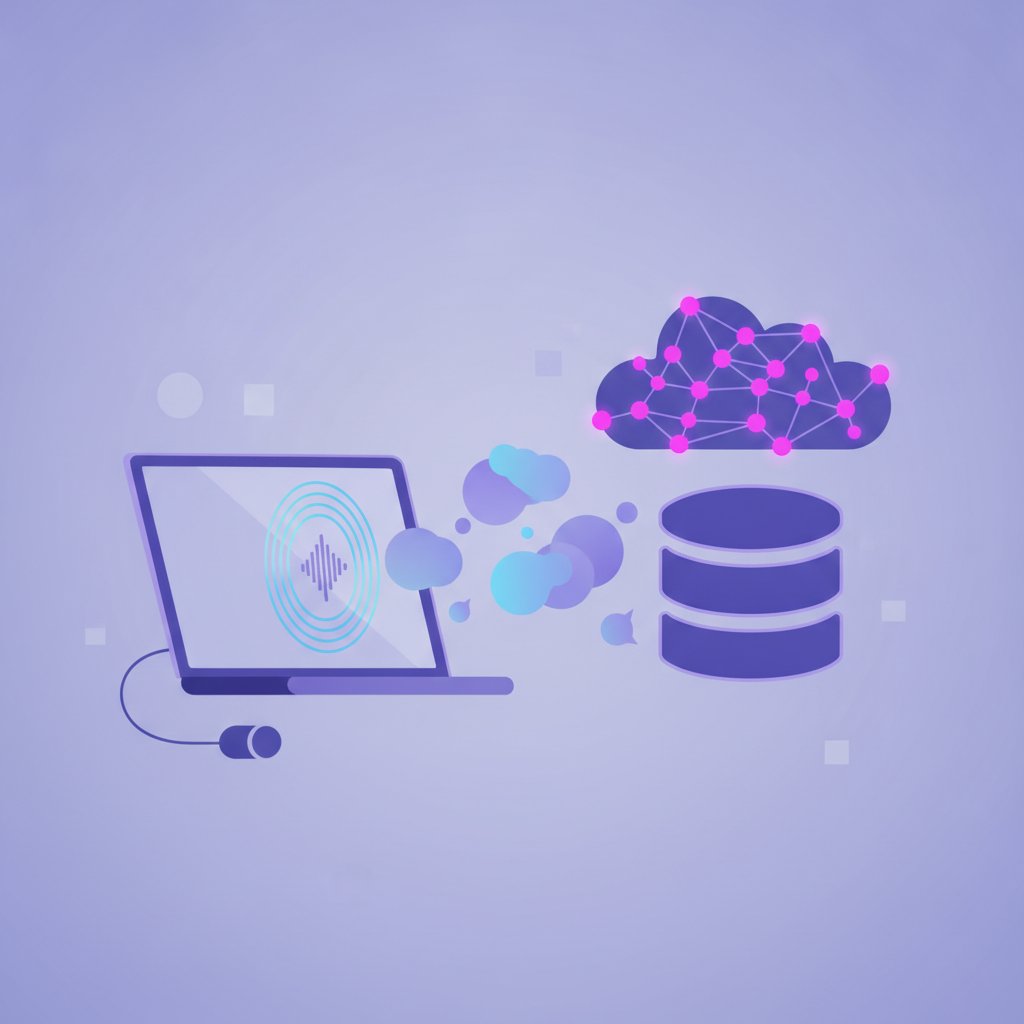
Before connecting apps, it helps to understand how the data flows from your voice down to a Notion page. A complete pipeline relies on four distinct stages:
- Capture: A phone app or voice recorder that saves an audio file (.mp3, .m4a, or .wav).
- Transcription: Converting speech to text using an engine like OpenAI Whisper.
- Structuring: Sending the raw transcript to ChatGPT to extract actionable tasks, key points, and a summary.
- Storage: Sending the structured output directly to a designated Notion database via API.
You can run this manually by copying and pasting text back and forth, but automating the steps with a workflow builder like Make or Zapier turns a five-minute chore into a background background task that takes zero active effort.
Step 1: Setting Up Audio Capture
The biggest bottleneck in any automated workflow is how fast you can start recording. If you have to open an app, navigate three menus, and hit record, you will stop using the system within a week.
Option A: Apple Shortcuts or Mobile Webhooks
If you use an iPhone, the built-in Shortcuts app is the cleanest entry point. You can map a shortcut to your lock screen or back-tap action that records audio, converts the recording to a binary file, and sends a HTTP POST request directly to a webhook endpoint created inside Make or Zapier.
Option B: Messaging Apps (Telegram or WhatsApp)
When I set this up for my own channels, I found that using a private Telegram bot was actually the most resilient method across desktop and mobile. I record a voice message inside a private Telegram chat, and the automation platform instantly picks up the new voice message file from the Telegram trigger node.
Step 2: Transcribing Audio Accurately
Raw text output from basic phone dictation tools is usually missing punctuation and struggles with formatting. Using an advanced speech recognition model like OpenAI Whisper produces vastly superior transcriptions, especially if you speak with an accent, mix languages, or record in noisy environments.
Inside your automation platform (such as Make, Zapier, or n8n), add an OpenAI node that calls the audio transcription endpoint. You upload the audio file binary collected from Step 1 and select the transcript model. Whisper automatically adds punctuation, breaks up giant blocks of text, and infers context from surrounding sentences.
Step 3: Prompting ChatGPT for Clean Summaries
Once you have the raw transcript text, pass it to a ChatGPT completion step. Sending raw speech directly into Notion just creates messy text blocks. The magic happens in the system prompt you give to ChatGPT.
When I first built my prompt, I made the mistake of asking ChatGPT to ‘summarize this voice note.’ The output was an overly enthusiastic, fluff-filled paragraph that ignored specific action items. A strict, structured system prompt works far better.
The System Prompt Structure
Here is the exact prompt blueprint I use in my automation step:
You are an executive assistant processing a raw voice note transcript. Clean up verbal stutters, filler words ('um', 'ah', 'like'), and repeated ideas. Do not alter the core meaning or invent new details. Extract the content into four distinct sections using markdown:
- One-Sentence Overview: A high-level summary of the main topic.
- Key Takeaways: Bullet points summarizing the main ideas discussed.
- Action Items: A checkbox list of clear, actionable tasks mentioned in the note. If no tasks exist, state ‘None’.
- Cleaned Transcript: The full transcript with improved paragraph breaks and removed filler words.
Step 4: Mapping the Data to Notion
Now that ChatGPT has generated structured text, you need to map that data into your Notion database. In your Notion workspace, create a new database called ‘Voice Notes Inbox’ or integrate this directly into your existing dashboard.
Recommended Notion Database Schema
Keep your Notion database properties simple to avoid automation errors:
- Title (Name property): Populated with ChatGPT’s one-sentence summary or generated title.
- Date (Date property): Set to the time the record was created.
- Category (Select property): Optional tag like ‘Content Idea’, ‘Task’, or ‘Personal’.
- Page Body: The full markdown text returned by ChatGPT (Key Takeaways, Action Items, and Cleaned Transcript).
In your Zapier or Make scenario, add a ‘Create Database Item’ node for Notion. Map the summary output from ChatGPT into the Name property, and place the remaining structured content directly into the Page Content field. Test the scenario once, save it, and turn the schedule to active.
Comparing Voice Notes Automation Methods
Depending on your budget and technical comfort, several stack combinations can achieve this workflow. Here is how the most common approaches compare:
| Method | Setup Effort | Best For |
|---|---|---|
| Direct ChatGPT Mobile App | Low | Quick manual notes, zero setup time. |
| Make / Zapier + OpenAI + Notion | Medium | Full background automation without manual copy-paste. |
| Native Notion AI Voice Imports | Low | Users who prefer staying strictly within Notion’s ecosystem. |
Tool Costs and Pricing Expectations
When running automated pipelines with third-party tools, keep in mind that pricing models generally combine subscription tiers and pay-as-you-go API usage:
- Automation Platforms (Make/Zapier): Most platforms offer a functional free tier with limited task runs per month. Paid tiers usually start around the $10 to $20/month range as your task volume grows.
- OpenAI API: API usage for Whisper and ChatGPT is separate from a ChatGPT Plus subscription. You pay fractions of a cent per minute of audio transcribed and per thousand text tokens processed. For typical daily voice notes, total API usage usually stays under a few dollars per month.
- Notion: The core API access is free for personal workspace owners and team accounts.
Features and limits update frequently across all these services. Always check the official pricing page for each tool before building high-volume workflows.
Limitations and Gotchas
While an automated voice pipeline is a massive time-saver, it is not flawless. Being aware of these practical edge cases will save you hours of troubleshooting:
Audio File Limits
OpenAI’s Whisper API currently has a strict file size limit (around 25MB). If you record a 45-minute continuous voice note on high-quality settings, the upload step in Make or Zapier will fail. For long podcasts or lengthy meetings, you will need to compress the audio or split the file prior to sending it to the API endpoint.
Technical Jargon and Foreign Words
Whisper is surprisingly good at context, but if you frequently speak brand names, code snippets, or niche slang, it may mishear those words. You can mitigate this by adding a custom ‘prompt’ parameter in the Whisper API step containing a list of proper nouns you frequently use.
Formatting Errors in Notion API
Passing raw markdown text directly into Notion’s API block architecture can occasionally drop bullet formatting or render plain text without rich links. If you notice strange styling inside Notion, ensure your automation tool is parsing the markdown string correctly into Notion API block types.

My Take
If you are a solo creator, consultant, or builder, setting up a voice notes to notion chatgpt pipeline is one of the highest-yield productivity tweaks you can implement. The manual method—opening the ChatGPT app, tapping the voice icon, talking, copying the response, opening Notion, and pasting it—works fine for occasional notes. But if you capture three to five raw thoughts a day like I do, that manual administrative loop creates mental friction.
My recommendation: Start simple with a basic Make or Zapier scenario connected to a Telegram bot or iOS Shortcut. Once you see a raw spoken thought show up inside your Notion database as a fully organized action plan two minutes after you finish speaking, you will never go back to typing out long outlines manually.
FAQ
Can I set up this voice notes to Notion ChatGPT pipeline for free?
Yes, you can build a working version using free accounts. Make offers a free plan with a generous monthly operation limit, and Notion’s API is free for personal use. You will, however, need a small balance (a few dollars) topped up in an OpenAI developer account to access the Whisper and ChatGPT APIs, though the per-note cost is tiny.
How well does ChatGPT handle mixed languages or heavy accents in voice notes?
Extremely well. OpenAI’s Whisper model was trained on vast amounts of multilingual audio data. If you speak half in English and half in another language within the same recording, Whisper transcribes both accurately, and ChatGPT can translate or organize the final transcript into English automatically based on your system prompt instructions.
What happens if my voice note audio file is too large to send?
If your recording exceeds the file size limit of your automation tool or the Whisper API (typically 25MB), the scenario will trigger an error. To handle long recordings, you can lower your voice recorder’s bitrate to mono m4a, or use an automation module that compresses the audio file before passing it to the transcription step.
More on Business Operations & Productivity
- Automating Lead Magnet Delivery for FreeHow to build a reliable, automated lead magnet delivery pipeline without spending money.
- Automate Gmail Messages to Notion TasksGuide on automatically converting Gmail messages into Notion tasks using automation tools.
- WooCommerce Order Alerts via ZapierLearn how to set up instant WooCommerce order notifications in channels like Slack using Zapier webhooks.
See every Business Operations & Productivity post in our Automation & Workflows guide.
Handy toolsAI tool ROI calculator · AI Tool Finder